Track the real result, then use it.
Learn the fastest way to log your matches, build matchup knowledge, prepare an event and turn your testing into sideboard plans you can read during a round.
Getting started
MyDeckStats is built to record real results quickly, then turn them into deck, matchup and sideboard decisions. Four things get you going.
- Add your deckPick the format and archetype with buttons, paste the list and save.
- Log what you playTournament rounds and one-shots, with presets so a round takes seconds.
- Prepare the next eventChoose the field you expect and the deck to bring, and take a sideboard sheet with you.
- Read your numbersThe dashboard, the deck pages and Scout fill in as you log more.
Until you have a deck and a first result, the dashboard leads with the next thing to do. You do not need to fill anything in beforehand: a deck with no matches simply has empty tables.
Your dashboard
The dashboard (Dashboard in the menu) has three tabs under your name.
Overview
The next thing to do (your next prepared event, or the next step for a new account), quick actions, and Your numbers for the last 30 days, 12 months or all time, with the change against the period before. Then your latest tournaments and one-shots, the form of your last 10 matches, the decks you play, what the data says about your best and toughest matchups, and the decks that are hot this week.
Statistics
Your full statistics with filters for dates, format, platform and event type, split in Snapshot, Decks and Opponents. It loads the first time you open it.
Progress
Your level, the weekly tasks, the objectives and the trophies you can earn by logging, analysing decks and writing notes.
On a phone
The tabs stay in view while you scroll, the quick actions slide sideways and the cards below the numbers swipe, so the page stays short.
Decks
Add a deck
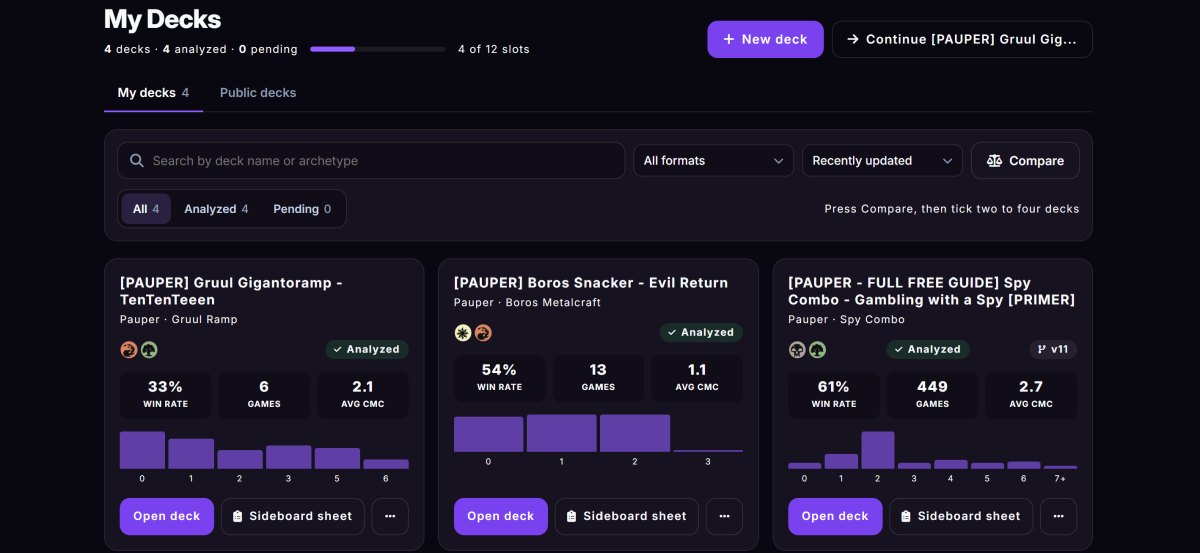
- Open My Decks and choose New deck.
- Choose the format, then the archetype (the list is filtered for that format).
- Enter the name and pick the mana colors.
- Paste the decklist. It is cleaned up when you save, so there is no formatting button to press. A Moxfield or ManaBox link works too.
- Save. A deck shows Analyzed once its analysis is ready.
Around the list
- Search, filter and sort by name, archetype, format and recent updates, and switch between My decks and Public decks.
- Compare: press Compare, tick two to four decks and read them side by side.
- Versions: every edit is kept, so you can compare an old build with the current one.
- The three dots on a card hold the less used actions.
Study a deck
- Matchup tables: your record against every tracked opponent deck and archetype.
- On the play and on the draw: your win rate split by who started.
- Post-side study: open a matchup to see only the games played after sideboarding, the cards that come in and out most often and how those games went.
- Sideboard plans: the plans you saved, with their record and win rate by game number.
Sideboard sheet
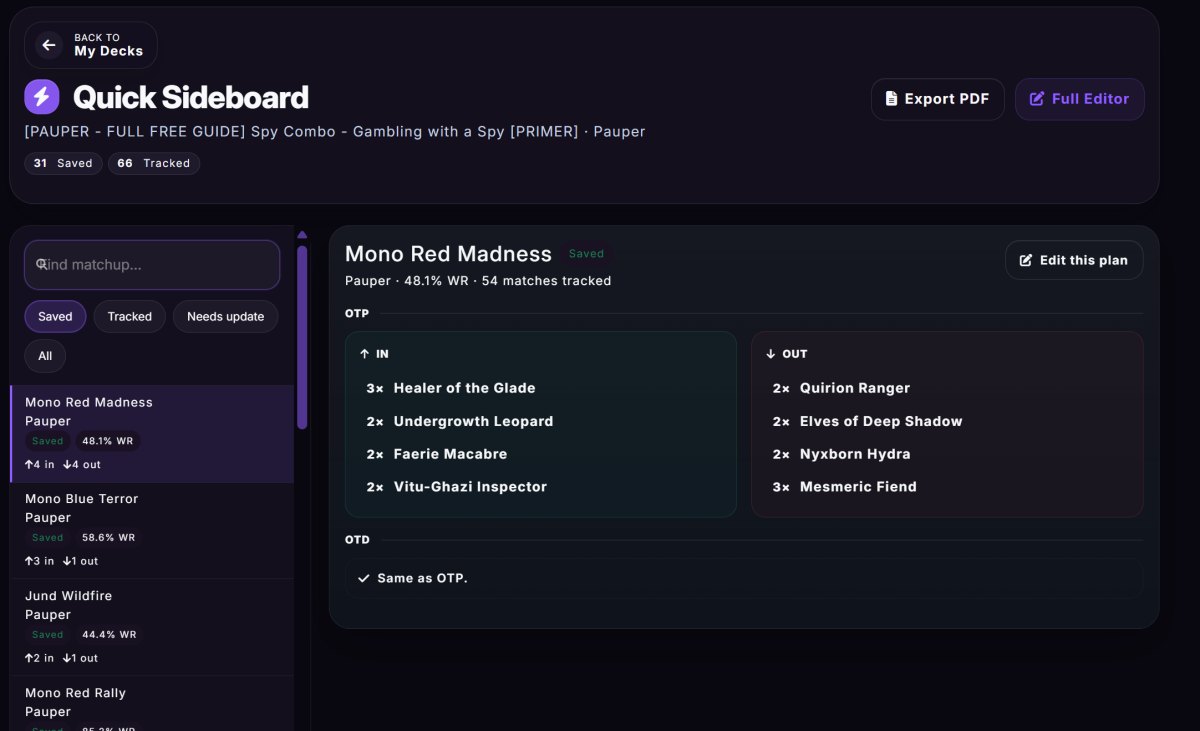
- Opponent first: the quick page puts the opponent's deck at the top, so you can read it between games.
- One sheet per matchup: for each deck of the same format, save what comes in and what goes out, with separate plans on the play and on the draw.
- Backed by your games: with enough tracked games the sheet also shows the best plan you actually played and the cards that recur in wins, and can prefill the sheet from it.
- PDF: export the sheet, or a compact version to print. Free, like the sheet itself.
Prepare a tournament
Prepare in the menu walks you through an event in short steps. It belongs to you, not to a deck: you say which event you are preparing for and pick the deck inside. Setting it up is free.
Set it up in three steps
- The event: name, date (with quick picks for today and this weekend), format, paper or online, and the kind of event (league, FNM, RCQ and so on).
- The field you expect: the format's decks with their share of the matches, the biggest ones already ticked, on a 60 or 180 day window. Untick what you do not expect.
- Your deck: each of your decks in that format scored against the field you picked, with how many matchups are favoured or risky, your own record and a warning when the data is thin.
Then follow the steps
- The event page lists what is left, grouped as Now, On the day and Afterwards, with a Next marker. Steps drawn from your data tick themselves; the optional ones you can skip.
- Check your list shows the deck as it stands, with a quick way to update it.
- Sideboard sheet and matchup plan: a card per expected deck, riskiest first, with what to keep and what to bring in and out, and the compact sideboard sheet PDF to save. The plan is part of Premium; the sheet and the PDF are free.
- The bag: a checklist for the day before.
- Log your rounds opens the event's own tournament in Tournaments, so the results are in your log and statistics like any other.
Tournaments
Your list
Every tournament is a row with its date, name and venue, the deck you played, the record with a chip for each round and how it ended. Hover a chip (or tap it on a phone) to see the opponent's deck, the score and who started. New tournament and Add match to the latest one are at the top, and the card on the left sums up your results: record, win rate, best finish and most played deck. The best finish takes the size of the event into account: 9th of 64 players counts for more than 1st of 5.
Add a tournament
- Choose New tournament.
- Fill the essentials first: name, date, format and the deck. Deck buttons appear after you choose the format, so the list stays short.
- Open Details only for what you need: venue, event type, players and your final placement.
Add a round
- Quick score presets: one tap for 2-0 Win, 2-1 Win, 1-2 Loss, 0-2 Loss, 1-1 Draw or Bye.
- The opponent: their deck and, separately, their name. The name is never filled in for you.
- On the play or on the draw: two buttons.
- Mulligans by game, in the details area.
Game by game
- Record each game as a win, loss or draw.
- From game 2, save what you sided in and out, with quantities and card names, and copy the plan to the later games in one tap.
- The detail area is collapsed when you create and opens by itself when you edit a round that already has details.
Each tournament page shows the round-by-round detail, with the games, the decks and your notes, and can be exported as a PDF or shared.
A picture of the result
A deck has one too, on its page: its win rate and record, its last results, the best and toughest matchup, how it does on the play and on the draw and the size of the list.
Every tournament with rounds has a Picture to share: a card with the name, date, format, your record, one coloured chip for each round, the deck, your placement and your win rate. Open it from the ... menu of the row or from the tournament page, then save it or send it from your phone. It is drawn in your browser, so nothing is uploaded, and it never shows your opponents' names, your notes or the venue.
One-shots
One-shots are for league matches, testing sessions and any game outside a tournament. They feed the same statistics as tournament rounds.
- Log a game picks the format first, then shows only your decks of that format, and Online or Paper as two buttons.
- Repeat last starts from the setup of your last one-shot, which is handy for a long testing session.
- The same score presets, game results, sideboard in and out, play or draw and mulligans as a tournament round.
- The list has a search for the opponent's name and notes, a results strip with your best and toughest matchups (decks met at least three times), and a selection bar to move one-shots into a tournament.
Scout
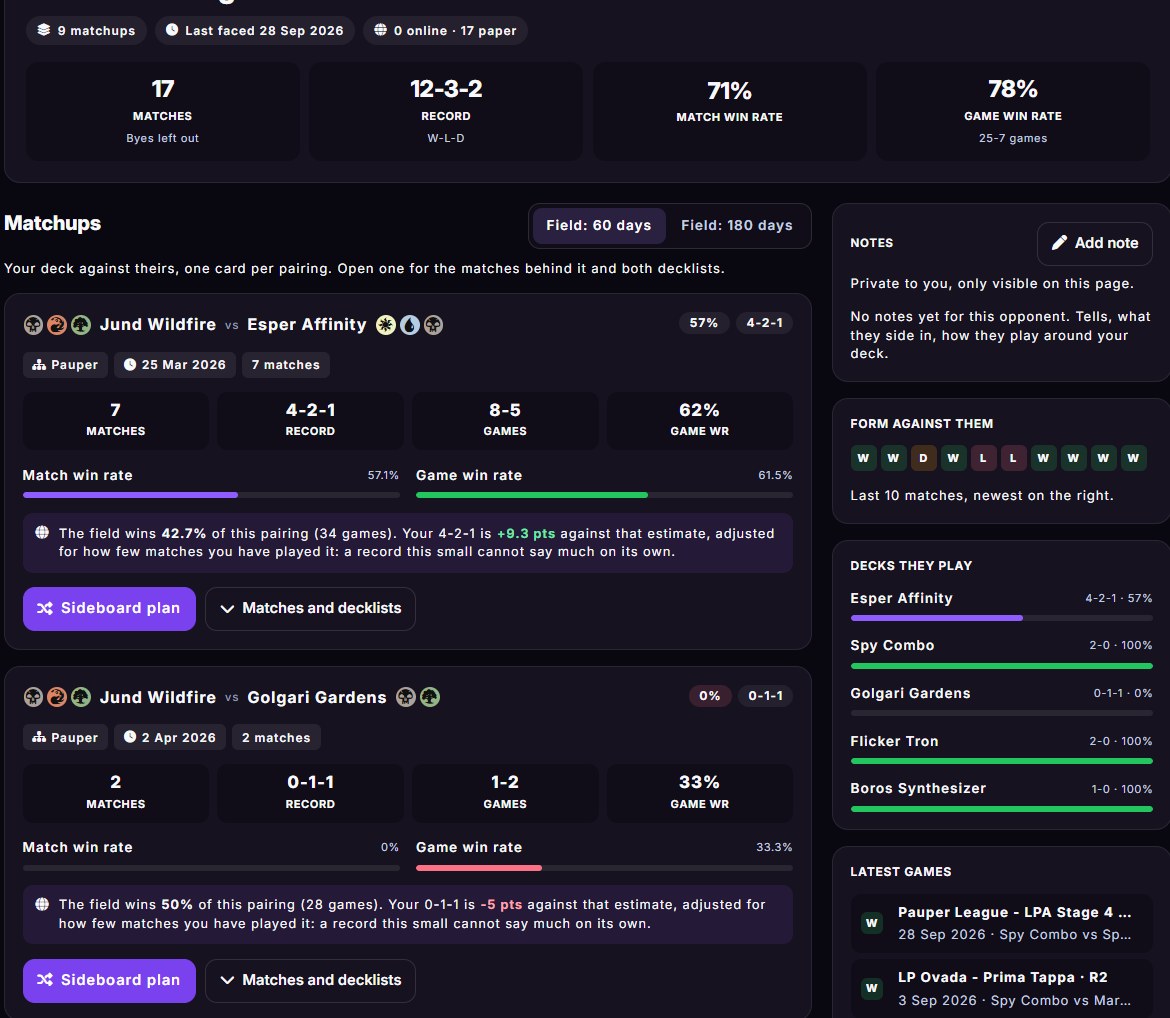
Every opponent whose name you wrote on a round or a one-shot gets a report, built from your own history.
- The list: your record against everyone, the opponents worth a look (toughest, best record, most faced), search, filters and sorting. Each row shows the deck they play most and the result of your last five games against them.
- The report: your record and win rate against that player, game by game, the decks they have played against you and your latest games with a link to each.
- Matchups: one card per pairing of your deck and theirs, with the field win rate for that exact pairing next to yours (60 or 180 days), a link to the sideboard plan and both decklists.
- Notes: private notes on that opponent, only visible to you.
- An opponent with an account on MyDeckStats links to their public profile.
Meta and matchups
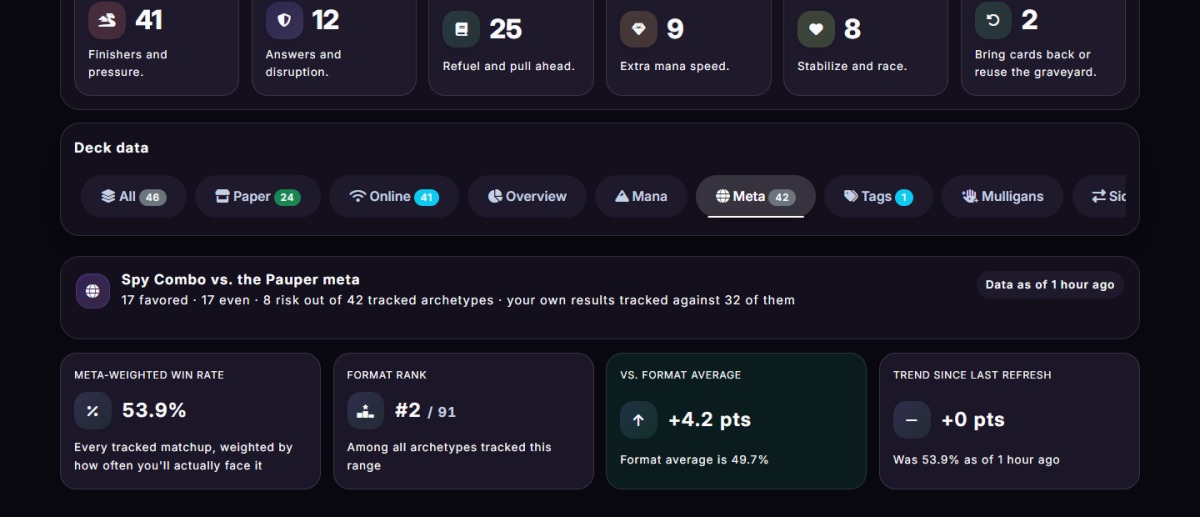
A deck linked to a tracked archetype gets a Meta tab: real win rates against the field, set next to your own results.
Favored, even, risk
Every tracked opponent archetype is sorted by a conservative, sample-size-aware win rate, so a handful of games does not make a matchup look better or worse than it is.
60 or 180 days
A fast-moving snapshot or a steadier view of the same format.
Confidence
Each matchup shows how many tracked matches stand behind its number.
Rank
Your archetype's weighted win rate and its rank among every other archetype of the format.
Simulator
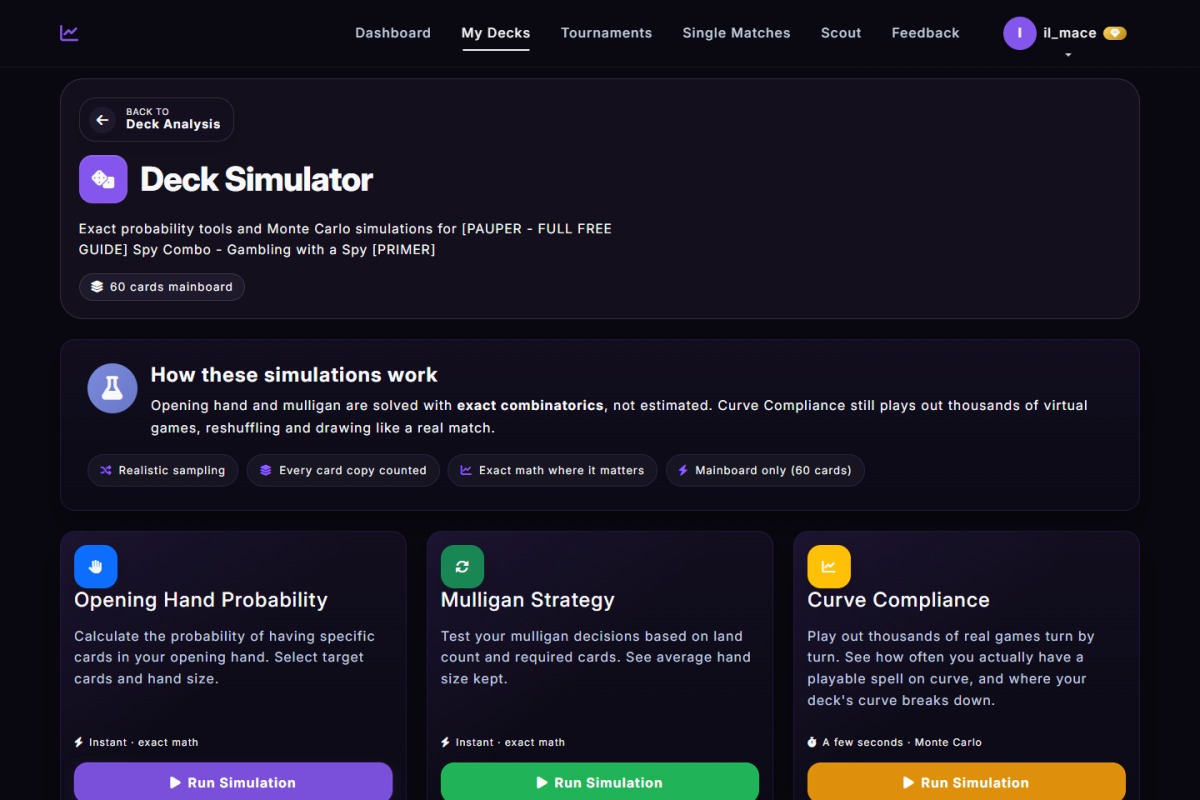
- Opening hand odds: exact combinatorics for what you will draw in your opening seven, not an estimate.
- Mulligan strategy: the same exact math applied to your keep and mulligan decisions.
- Curve compliance: thousands of simulated games show how often you have a play on curve and where the curve breaks down.
Open a deck and choose Simulator.
Statistics
The Statistics tab of your dashboard reads everything you logged. Narrow it down with the filters for dates, format, platform and event type.
| Number | What it tells you |
|---|---|
| Match win rate | How often you win full matches, with your record. A bye counts as a win and an intentional draw is left out. |
| Game win rate | How often you win individual games. |
| Best streak | Your longest run of wins, and the one you are on now. |
| Mulligans | How often you mulligan, and your win rate on a clean keep compared with after a mulligan. |
| Last six months | Your win rate month by month. Tap a month to open its tournaments. |
| Paper and online | The same numbers split by where you played. |
- Decks: matches, record and win rates per deck, with the best and worst matchup of each.
- Opponents: the decks you meet most and how you do against them, and your results by format.
Insights and your season
The Insights sub-tab of Statistics answers the questions a record cannot.
Why you lose
Under every lost game in the match form there is a row of reasons: mana screw, flood, color screw, a bad keep, a misplay, the wrong sideboard, a topdeck, the opponent's best draw. One tap each. Insights counts them by deck and by matchup, and counts mulligans on its own.
You against your deck
What an average pilot of your deck wins against the decks you actually met, next to what you won. It tells you whether a result comes from the deck or from your play, and whether a run was lucky. It needs 10 matches with both decks linked to a tracked archetype.
Patterns
Your win rate by round of a tournament, right after a win and after a loss, by the first, second and third match of the day and by day of the week, from 20 matches on.
Your local field
The decks you meet at each paper venue, with your results against them: the field to prepare for at your table.
- Likely ranges. A win rate shows the range it could really sit in: 58% over 137 matches is "likely 50-66%", over 12 matches it is far wider.
- Results by version. On the version history of a deck each saved version has its own record, its weighted win rate (a win rate pulled towards 50% when it rests on few matches, so the best version is the one you can trust, not the one with a lucky streak), the change against the version before and the cards that came in and went out. Compare sets any two versions side by side: win rate with its likely range, matches, games, how many in tournaments and one-shots, the days each was in use, the decks each one met and the cards that changed, with a line that says whether the gap is real or could be chance. It also shows a weighted win rate (pulled towards 50% when there are few matches), so 58% over 100 matches ranks above 60% over 15.
- The bell. The bell in the top bar shows how many notifications you have still to read, and the same number appears in the title of the tab and as a red dot on its icon, as in a chat app. Notifications wait for you inside the site: nothing is sent to your email and the browser never asks for a permission. They come from the admin (news, for everyone or for some players), from your test group (someone joins, shares a deck or writes a sideboard plan), from Trending (when the archetype of one of your decks is among the best of its format), from a weekly recap (your matches, your group, what is best in your format; it also tells you when your season is ready) and from your account (a failed payment, a subscription that ended). On the Notifications page you switch each kind on or off; payments cannot be switched off.
- Privacy. Everything is public until you switch it off. Settings, Privacy turns the whole profile off (your profile, decks and tournaments answer "not found" and leave the player lists, Trending and the search engines); Make private on a deck or a tournament hides just that one. A private deck takes the tournaments played with it along. Hiding never changes a number: your win rates, totals and rankings, the matchup matrix and the meta are always worked out on everything logged. Test groups are not affected: a private deck can still be shared with a group, which only sees what you tick there.
- Your season. A card on the Overview tab of the dashboard opens it: it appears by itself on 1 October and stays through January (in January it is still the recap of the year that just ended), and the page is open all year from the Progress tab. A page for each year with your win rate in a ring, a row of stories, a timeline of milestones (your first match, the 25th, 50th, 100th... a tournament you won, a perfect run), your best deck, best matchup, nemesis, longest streak, best finish and best month, and an image to save or share. Only you see the page.
- Stories. They open from 10 matches in the year (until then the page says how far you are). Watch your stories shows the year one idea at a time, full screen: tap the right side for the next one, the left side for the previous one, hold to stop, Escape to close. Every story can be saved as a picture the size of a phone screen to post as your own story.
Tools and Premium
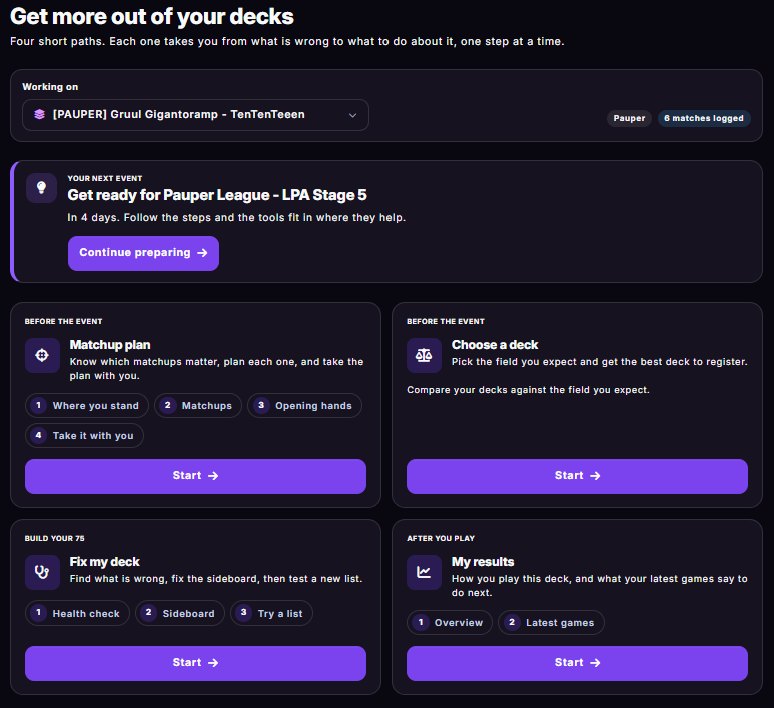
Everything above is free, with no time limit. Premium is one optional plan, paid monthly or yearly: it removes the ads and adds four guided deck tools, one short path each. Open Tools in the menu, pick a deck, and each tool shows its steps, where you are and what comes next.
Matchup plan
Know which matchups matter, plan each one, and take the plan with you.
Where you stand · Matchups · Opening hands · Take it with you
Choose a deck
Pick the field you expect and get the best deck to register.
Fix my deck
Find what is wrong, fix the sideboard, then test a new list.
Health check · Sideboard · Try a list
My results
How you play this deck, and what your latest games say to do next.
Overview · Latest games
Free players see the same page with the tools marked as Premium. Preparing a tournament, the sideboard sheet and its PDF stay free.
Community
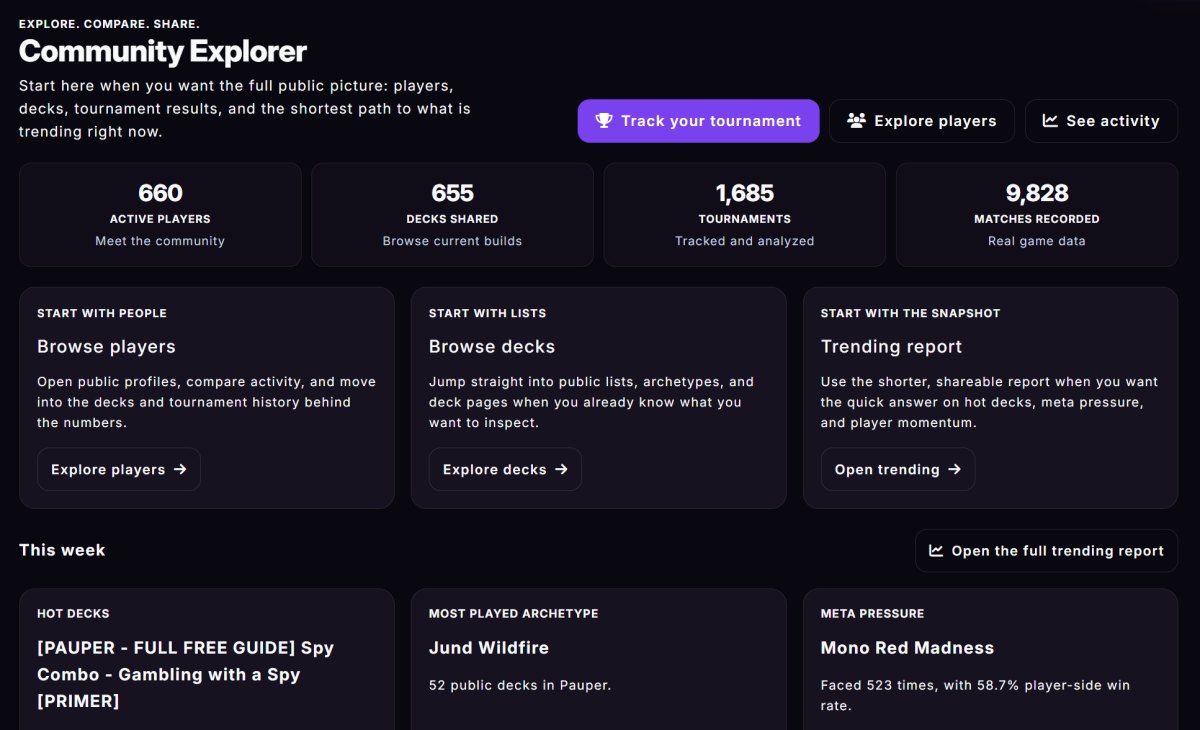
Browse without an account
- Community Hub: the platform in numbers, hot decks, the meta snapshot and the most active members.
- Players and Decks: public profiles with their tracked stats, and public decklists (a player can make the profile, a deck or a tournament private).
- Trending: what is rising in the tracked meta right now.
- Deck guides: in-depth archetype guides. The index and a preview are public; the full guide opens with a free account and a confirmed email.
Public tools
- Matchup matrix: a heat map of deck against deck win rates for each format, with the number of matches behind every cell.
- ID calculator: in the last round of a tournament, simulates thousands of tournaments like yours and tells you whether drawing or playing makes the top cut more often. Logged-in players find it in the Play menu, the tool for the day of an event.
- Card tournament: a game for the table. Pick a format and 16, 32 or 64 cards from the typical lists of the archetypes, choose one of two cards again and again until one favorite is left, then save the picture. You can narrow the cards to a colour, to lands or to a rarity, play a bracket of archetypes instead, or send your bracket to a friend: they play the very same one and see how their picks compare with yours. Anyone can play it; the most loved cards and archetypes of each format are ranked on the site. If you play it while logged in, the bell can tell you once a week which card players loved most in your format (you can switch it off in Notifications). In the bottom bar of a phone it is in More.
- Guess the deck: a quiz for the table. You see the first three cards of the typical list of an archetype and choose its name among four. Ask for up to three more cards, but each one takes 25 points off that round (100, 75, 50, 25). Ten rounds make a game of up to 1000 points, with an explanation after every answer and a picture to save or share. Anyone can play; a signed-in player gets a place in the weekly and all-time ranking of the format (shown as "Anonymous player" if you keep your profile off the public pages).
- Higher or lower: a game of streaks. You see the general win rate of an archetype (the "Overall" column of the win rate table of the site, as it is) next to the hidden one, each with a card of its list, and tap the one that wins more often. A right answer reveals the hidden rate and moves that archetype to the left; a wrong answer ends the game. The score is the right answers in a row, and you can leave at any time and keep it. Anyone can play; a signed-in player gets a place in the weekly and all-time ranking of the format. In the bottom bar of a phone it is in More.
Your public presence
- Your profile shows your public performance, your decks and your tournament history, so others can see what you play and test.
- Premium members get a small gem next to their name. It is automatic and there is no setting for it.
- Likes you give to players and decks stay private to your account.
Test groups
Ten players testing the same deck tell you more in a week than one player in a month. A test group (Prepare menu, Test groups) adds up the testing of a team and keeps its sideboard plans in one place.
- Start or join. Create a group and send the invite link or code to the people you test with, or paste the code you were sent. A group has up to 25 members.
- You choose what to show. In the Decks tab tick the decks the group may read, and untick them or leave whenever you like.
- What the group sees. For each shared deck: the list, the record against each opponent archetype and the sideboard plans, read only. Never your opponents' names, your notes, your venues, your other decks or your tournaments.
Overview
The group win rate with its likely range, what the group does best and where it struggles, the common opponents it has not tested enough yet, the matches played in each of the last 8 weeks and the archetypes tested.
Decks
A card for each shared deck, with a search, a format filter and a Compare tick. View list opens the deck: the list as text or as card images, by type, with the mana curve, its matchups and its sideboard plans.
Compare lists
Tick two to four decks and press Compare: the cards that differ (or all of them), as a table or as images, each deck's results, the opponents each one met as a heat map and the head to head.
Matchups
Every archetype against its opponents, with all the testers' matches added up into one sample. Faded rows rest on very few matches.
Plans
One sideboard plan for each archetype against an opponent archetype, for the play, the draw or both. Pick the matchup and tap the cards: Bring in offers the sideboards and Take out the main decks of the group's decks of that archetype, as images or as a list. Any member can write or change a plan, and from one of your shared decks Use for the group hands a plan you already made to the group.
Members
Who tests how much and with which decks. The owner can rename the group, remove members, change the invite link and delete the group.
Team page
The owner can give the group a public page from the Members tab. It says only the name, a line the owner writes and a few totals of the matches logged (this season, the last 30 days, ever, the members active this month, the weeks in a row with something logged): never a deck, an archetype, a format, a result or the name of a member. Teams with at least 2 members are ranked by matches logged, not won. Each member can keep their own matches out of the totals.
Streaming and your data
- Avatar. In Settings, Avatar search any Magic card by name and pick the art you like: it becomes your round avatar next to your name in the menu, the player lists, Trending, your public profile and your test groups. Remove my avatar brings the initial back. A player who keeps the profile off the public pages is not shown anywhere, avatar or not.
- Stream overlay. In Settings, Streaming create a private address and add it to OBS as a Browser source. It shows today's record, win rate, streak, your last results and the deck, and updates by itself. It never shows opponent names, notes or venues, and you can change the address or turn it off whenever you like. The creator guide has the whole setup.
- Picture to share. Every tournament has a card with the record, one chip per round, the deck and the placement, drawn in your browser to save or send from your phone.
- Download your data. In Settings, Data: matches, tournaments and decks as neat Excel files (a coloured header, filters, real dates and a colour on wins and losses; they open in Excel, in Numbers on Mac and iPhone and in Google Sheets) or as plain CSV.
Wherever you play

Web and iPhone
The full site works in any browser and is tuned for your phone between rounds. On iPhone, add it to your Home Screen from Safari's Share menu for a full-screen icon, no App Store needed.
MTGO desktop client
A free Windows client that watches your live games and syncs the results automatically, with no manual entry.
Tips
Track the real result
Log the losses and the rough matchups too. Better data makes better insights.
Set the opponent's deck
It is what makes matchup tables, Scout and the sideboard study mean something.
Copy the plan forward
If your sideboard plan does not change after game 2, copy it to the later games instead of retyping.
Keep the sheet current
Update your matchup sheets after testing so the quick reference you open at the event is still right.
Need more help?
If something is unclear, or you want to report a problem, get in touch.